
The short version
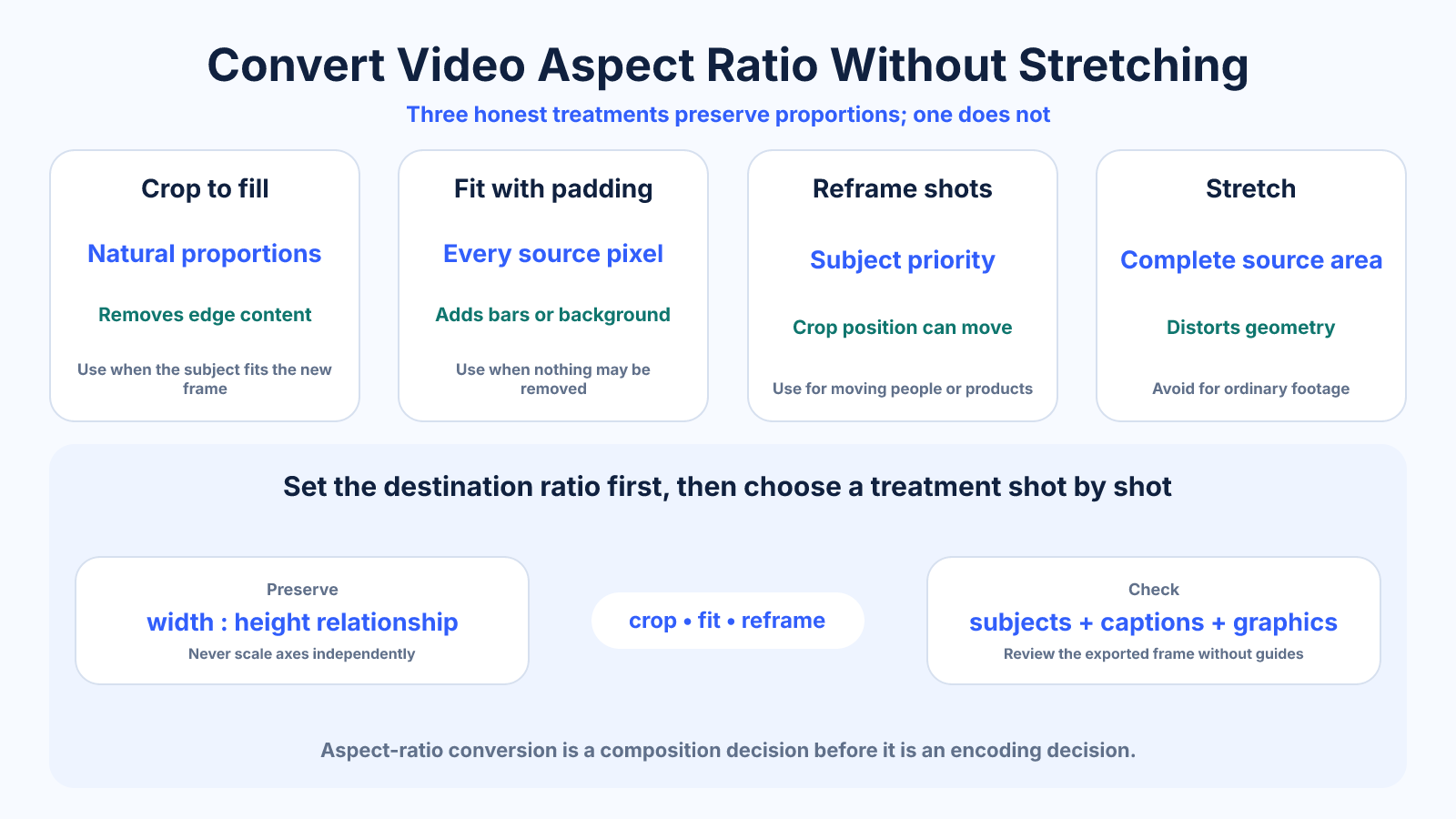
To change a video's aspect ratio without stretching, preserve the source scale and choose one of three honest treatments: crop the excess, fit the complete source inside a padded canvas, or reframe individual shots. Set the destination ratio before resizing and never unlock width and height independently.
Use this guide when
Use this guide to compare non-distorting conversion methods for any source and target video ratio.
Choose a different guide when:
- To handle the landscape-to-portrait case, read How to Turn a Horizontal Video into Vertical Video.
- To choose specifically between crop and added bars, read Crop vs Letterbox: Which Video Framing Method Should You Use?.
What matters most
- Changing the frame shape and changing pixel dimensions are separate decisions.
- Cropping fills the destination but removes image area; fitting preserves the full source but creates unused canvas.
- Shot-by-shot reframing is usually the best treatment when a subject moves.
How to apply it
- Identify the source dimensions, pixel aspect ratio and intended display orientation.
- Create a sequence at the exact destination ratio and a suitable delivery resolution.
- Preview crop and fit geometry before choosing a treatment for each shot.
- Keep subjects, captions and graphics inside the destination-safe composition.
- Export a short test, inspect it without editor guides, then encode the full program.
Reference table
| Method | What it preserves | What it changes | Good choice when |
|---|---|---|---|
| Crop to fill | Natural proportions | Removes edge content | The subject fits the new frame |
| Fit with padding | Every source pixel | Adds bars or background | Nothing may be removed |
| Reframe shots | Subject priority | Crop position changes over time | People or products move |
| Stretch | Complete source area | Distorts geometry | Almost never |
Use exact dimensions and units in production notes; familiar labels can describe more than one standard.
Separate frame shape from resolution
Aspect ratio describes the relationship between width and height; resolution describes the actual pixel grid. A 3840 × 2160 and a 1920 × 1080 video are both 16:9, but the first contains four times as many pixels. Decide the destination shape before choosing a resolution so composition and delivery are not confused.
If a 1920 × 1080 source is placed in a 1080 × 1920 vertical sequence, scaling it to 1080 pixels wide produces a complete image only 608 pixels tall. Scaling it to 1920 pixels tall fills the canvas but makes the source about 3413 pixels wide, so roughly 1167 pixels are removed from each side before repositioning.
Choose crop, fit or a designed canvas
Crop is appropriate when the edges are expendable and the new frame should feel native. Fit is appropriate for slides, demonstrations, logos or any shot whose complete content matters. A designed canvas combines the fitted source with intentional color, text, duplicated imagery or supporting graphics rather than treating empty space as a mistake.
Do not choose by habit. Review the most difficult shots first: wide groups, screen recordings and scenes with important action on both sides. If those cannot survive a crop, plan a fit or a different edit before spending time on titles and effects.
- Use crop for simple, centered subjects.
- Use fit for complete diagrams and interfaces.
- Use a designed canvas when surrounding space can carry useful context.
Reframe moving subjects over time
A static center crop works only when the important action remains centered. For interviews, sports and demonstrations, add position keyframes or use motion tracking so the crop follows the subject. Cut to another composition when two important subjects separate farther than the new frame can contain.
Watch the conversion in real time rather than checking isolated thumbnails. Fast automatic tracking can feel nervous, while late movements make the subject touch an edge. Smooth keyframes, anticipate direction of travel and leave visual space in front of a moving face or object.
- Set a keyframe only when the crop needs to move.
- Prefer cuts over rapid pans between distant subjects.
- Check every caption after reframing.
Export without introducing a second problem
Match the source frame rate unless deliberate conversion is required. Use square pixels for ordinary web and social delivery, and select a codec and bitrate suitable for the destination. The correct aspect ratio does not protect a file from excessive compression, wrong color levels or duplicated frames.
Export a representative segment containing motion, fine detail, captions and a difficult crop. Check the file in an ordinary player and in the destination upload preview. Verify its reported width and height, then keep the editable project so the crop can be revised without enlarging a downloaded platform copy.
Common mistakes to avoid
- Changing only width or height and making circles oval.
- Applying one centered crop to an entire moving sequence.
- Baking black bars into a file when the player can add them correctly.
- Upscaling a low-resolution source without checking actual detail.
Continue with the right tool
Use a calculator to check the numbers against your own source and destination instead of relying on a generic preset.
Related guides
How to Turn a Horizontal Video into Vertical Video
Reframe landscape footage for a vertical 9:16 canvas using crop, split layouts, backgrounds and shot-by-shot composition.
Video framing and deliveryYouTube Video Aspect Ratios for Videos, Shorts and Thumbnails
Choose the correct YouTube aspect ratio for standard videos, Shorts and thumbnails, and understand player padding and previews.
Video framing and deliveryHow to Reframe 16:9 Video for TikTok, Reels and Shorts
Build effective 9:16 versions of a 16:9 edit for TikTok, Instagram Reels and YouTube Shorts without blind center crops.
Frequently asked questions
Can aspect ratio change without losing any picture?
Yes. Fit the complete source inside the new canvas and fill the remaining area with bars, color or a designed background.
Does changing aspect ratio reduce quality?
The ratio change itself does not. Cropping removes pixels, upscaling invents pixels and another lossy encode can reduce quality.
Should I crop before or after adding captions?
Establish the destination frame first, then position captions for that frame so they are not clipped or hidden.
Can I use one conversion for every social platform?
You can share a master, but platform previews and interface overlays differ. Make placement-specific checks before publishing.
Sources and further reading
These references support the technical definitions and platform-specific guidance used above.
- YouTube Help — video resolution and aspect ratiosFirst-party guidance on player behavior and native aspect ratios.