
The short version
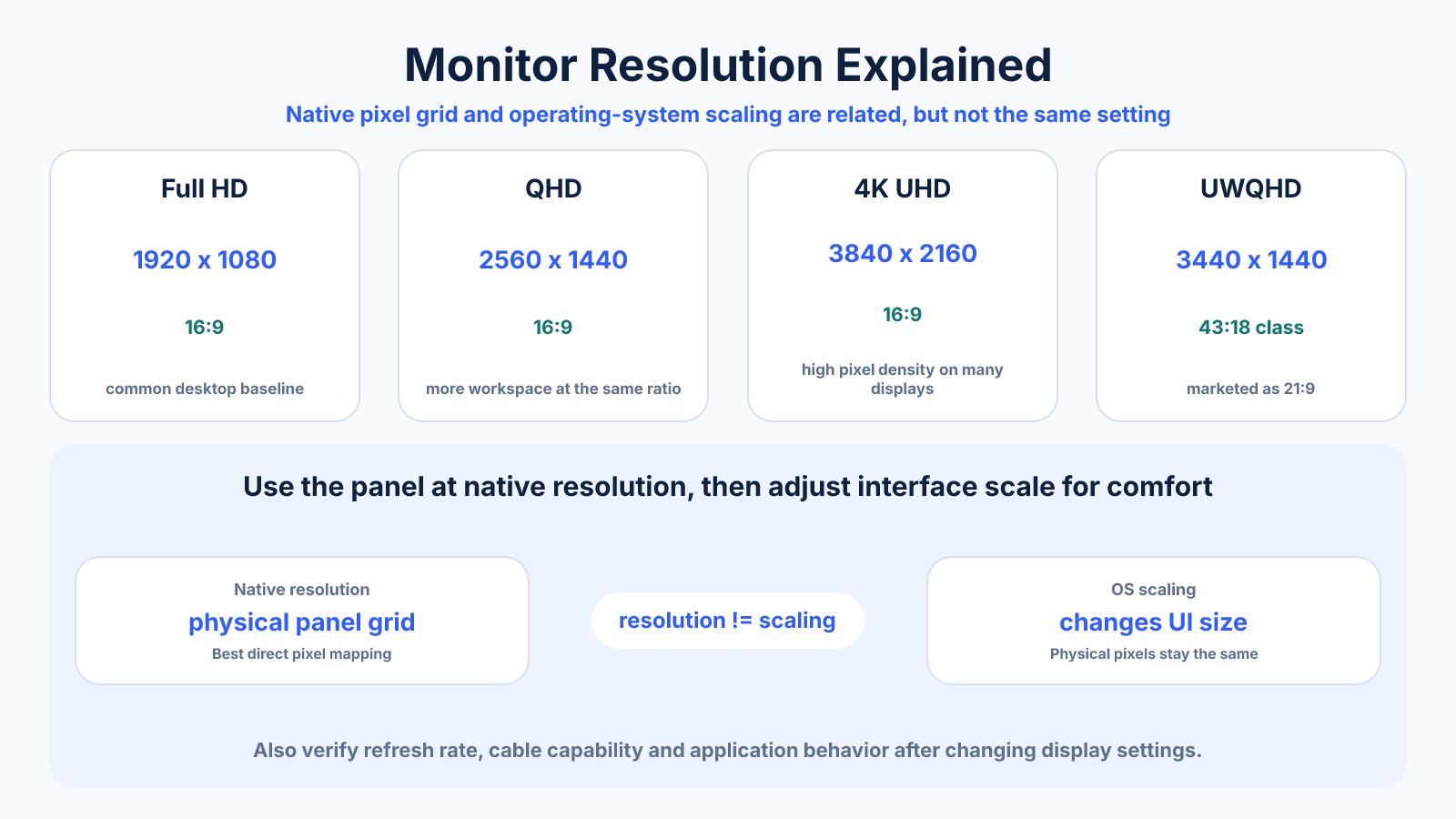
Monitor resolution is the physical or configured pixel grid across and down the display. Native resolution maps content most directly to the panel, while operating-system scaling changes interface size without changing physical pixels.
Use this guide when
Use this guide to understand monitor pixels, scaling and aspect ratio as general display concepts.
Choose a different guide when:
- To identify what your own system reports, read What Is My Monitor Resolution? Screen Pixels vs Browser Viewport.
- To translate device pixels into CSS layout pixels, read Screen Resolution vs Viewport vs Device Pixel Ratio.
What matters most
- Resolution and physical screen size together influence pixel density.
- Display scaling is not the same as lowering native resolution.
- Aspect ratio determines the shape and workspace proportions.
How to apply it
- Find the monitor's native resolution in its specifications.
- Set the operating system to that resolution.
- Adjust scaling until text and controls are comfortable.
- Verify refresh rate, cables and applications after changing display settings.
Reference table
| Resolution | Common name | Aspect ratio |
|---|---|---|
| 1920 × 1080 | Full HD | 16:9 |
| 2560 × 1440 | QHD | 16:9 |
| 3840 × 2160 | 4K UHD | 16:9 |
| 3440 × 1440 | UWQHD | 43:18, marketed as 21:9 |
| 5120 × 1440 | Dual QHD | 32:9 |
Use exact dimensions and units in production notes; familiar labels can describe more than one standard.
Native resolution and configured resolution
An LCD or OLED panel has a fixed physical pixel matrix called its native resolution. Running the desktop at that resolution usually gives the most direct mapping and clearest text. Selecting a lower non-native resolution asks the display system to rescale the image, which can soften edges.
Operating-system scaling is different. It keeps the display at native resolution while drawing interface elements larger in logical coordinates. This usually preserves sharpness better than lowering resolution and makes high-density displays usable without turning menus and text tiny.
Resolution, screen size and pixel density
The same resolution can look different on different sizes. A 24-inch 1080p monitor has a higher pixel density than a 32-inch 1080p monitor, so text and diagonal edges generally look finer at the same viewing distance. A higher resolution on the same size also increases density.
Density does not automatically mean more usable workspace because scaling may enlarge the interface. Compare physical size, native resolution, viewing distance and preferred scaling together. For productivity, readable text and comfortable window size matter more than maximizing a single specification.
Choose a monitor resolution by task
For general work, prioritize comfortable text, enough workspace and reliable scaling in your applications. For gaming, balance resolution with refresh rate and GPU capability. For photo and video work, resolution helps with detail, but panel uniformity, color accuracy, gamut and calibration remain essential.
Ultrawide formats add horizontal workspace but can create compatibility issues in games, capture and screen sharing. A 3440 x 1440 display is not simply a larger 2560 x 1440 screen; it adds width while keeping the same vertical pixel count. Check the exact resolution rather than relying on names such as 2K or 21:9.
Resolution, refresh rate and connection bandwidth
Higher resolution and refresh rate increase the amount of display data that must travel through the connection. Color depth and chroma format also matter. A port or cable may support 4K at one refresh rate but not another, so verify the complete resolution-refresh-color combination for the monitor and computer.
If a new display does not expose its expected mode, check the correct input, cable standard, graphics driver and monitor menu before assuming the panel is faulty. Multi-monitor arrangements may also be limited by the computer's total display-output capability.
Common mistakes to avoid
- Running an LCD below native resolution and expecting maximum sharpness.
- Ignoring scaling when comparing workspace size.
- Assuming a larger screen automatically has more pixels.
Continue with the right tool
Use a calculator to check the numbers against your own source and destination instead of relying on a generic preset.
Related guides
What Is My Monitor Resolution? Screen Pixels vs Browser Viewport
Understand the difference between physical screen resolution, operating-system scaling, device pixel ratio and browser viewport measurements.
Responsive images and displaysScreen Resolution vs Viewport vs Device Pixel Ratio
Distinguish physical screen pixels, CSS viewport dimensions and device pixel ratio, then apply them to screenshots and responsive images.
Displays and monitorsMonitor Resolution Chart: HD, QHD, 4K, Ultrawide and 5K
Compare common monitor resolutions by exact dimensions, pixel count and aspect ratio for productivity, design and gaming workflows.
Frequently asked questions
What is native resolution?
It is the panel's physical pixel matrix and usually its sharpest general operating mode.
Does scaling reduce quality?
Modern interface scaling keeps the panel at native resolution, though individual apps may render differently.
Does resolution control refresh rate?
They are separate, but a connection or graphics device may support different maximum combinations.
Sources and further reading
These references support the technical definitions and platform-specific guidance used above.
- Microsoft: change screen resolution and layoutOfficial guidance for recommended resolution and Windows display scaling.