
The short version
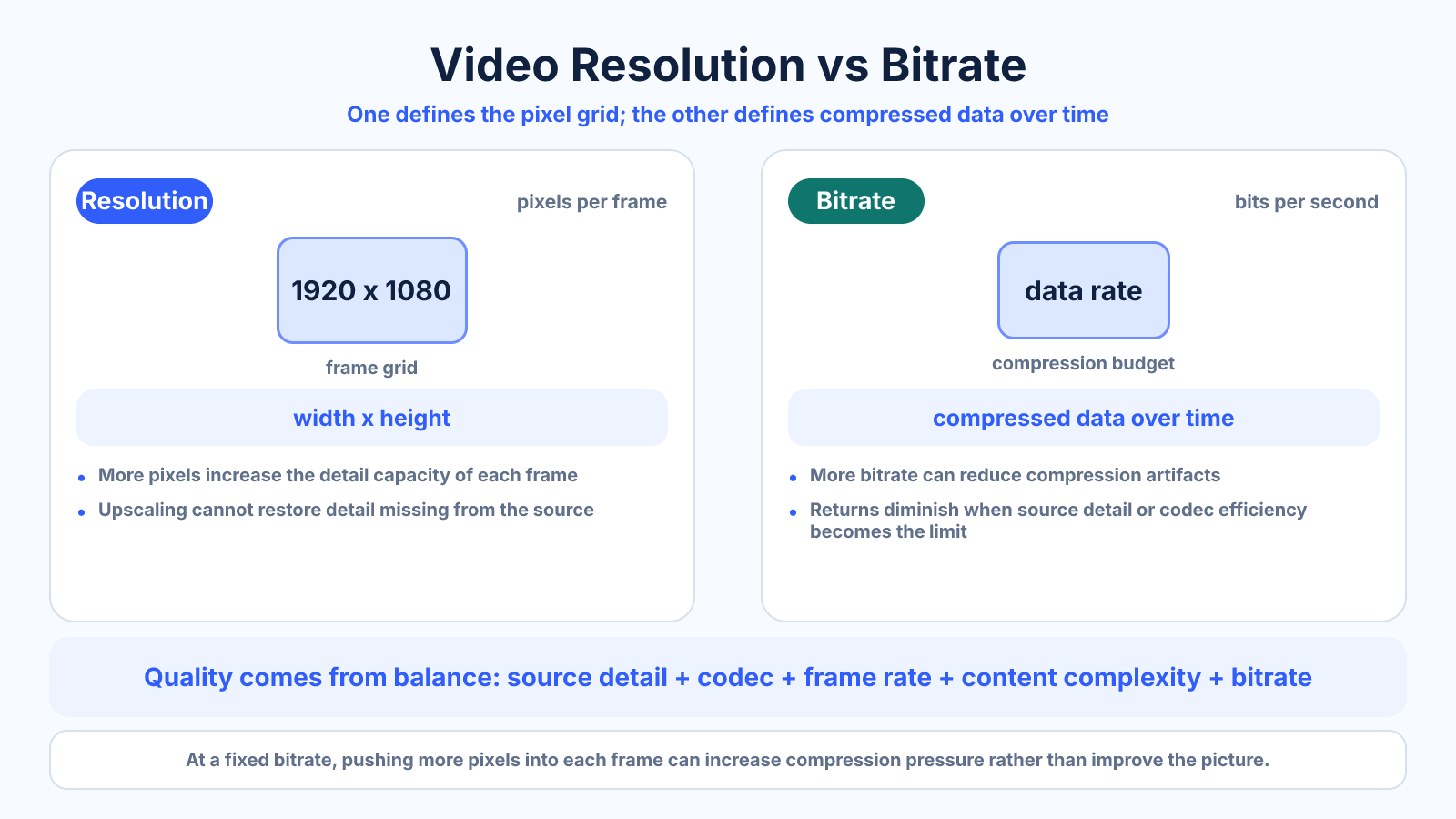
Resolution sets the pixel grid and the potential for fine spatial detail; bitrate controls how much compressed data is allocated per second and, for a fixed duration, strongly determines file size. A 4K frame does not guarantee clearer video if its bitrate is too low, and more bitrate cannot restore detail missing from the source. Codec, motion, frame rate and delivery conditions still matter.
What matters most
- Resolution limits spatial detail; bitrate limits how faithfully frames are encoded.
- The same bitrate can produce different quality with different codecs and content.
- Upscaling increases raster size without creating real captured detail.
How to apply it
- Determine genuine source resolution and intended viewing size.
- Keep the source frame rate unless conversion has a defined purpose.
- Choose a delivery resolution that does not depend on pointless upscale.
- Allocate bitrate for the codec and most complex scenes.
- Encode representative samples, compare motion and measure final size.
Reference table
| Change | Pixel grid | Nominal size at fixed bitrate | Likely visual effect |
|---|---|---|---|
| 1080p to 4K upscale | 4× pixels | Similar | Same source detail spread over more samples |
| Double bitrate | Unchanged | About 2× | Fewer artifacts, diminishing returns |
| 60 to 30 fps | Unchanged | Similar if bitrate fixed | Different motion cadence |
| Newer efficient codec | Unchanged | Can be smaller | Compatibility and encode cost change |
Use exact dimensions and units in production notes; familiar labels can describe more than one standard.
Resolution and bitrate perform different jobs
A 1920 × 1080 frame provides 2,073,600 pixel positions, while 3840 × 2160 provides 8,294,400. Those counts describe the decoded raster, not how many bytes the compressed stream occupies. Bitrate measures data per second and, with duration, predicts file size.
When 4K and 1080p exports each use an 8 Mb/s video-stream bitrate for ten minutes, each stream has a nominal size of 600 MB (8,000,000 bits/s × 600 s ÷ 8 = 600,000,000 bytes). That estimate excludes audio, container overhead and bitrate variation. The 4K encoder must describe four times as many pixel positions with the same nominal video-data budget, so it may show more artifacts or spend bits on upscale pixels that contain no extra source detail.
- Use resolution to describe the frame grid.
- Use bitrate and duration to estimate storage.
- Do not derive compressed size from pixel count alone.
Start with the detail the source actually contains
A soft, out-of-focus or heavily compressed source remains limited after enlargement. Upscaling can interpolate a larger raster and sophisticated methods may make edges look cleaner, but they cannot recreate every factual texture that the camera failed to capture.
Inspect the source at normal display size and at 100% where useful. If it is genuine 1080p, a clean 1080p delivery may allocate available bitrate more effectively than a nominal 4K version. Preserve the original master for future processing rather than repeatedly encoding derivatives.
- Avoid treating upscale as new capture detail.
- Judge at intended viewing size.
- Return to the best available master.
Account for codec and scene complexity
Grain, rain, crowds and fast camera movement change rapidly and are difficult to predict between frames. Slides and a locked interview contain more repeated information. Therefore one bitrate can look clean in a tutorial and poor in sports even at the same dimensions and frame rate.
Codec generations and encoder implementations also differ. A more efficient codec may retain comparable quality at a lower bitrate, but it can require more processing and may not play on every destination. Verify the current platform support and decoding environment before making efficiency the only criterion.
- Test hard motion and texture.
- Compare outputs, not codec marketing alone.
- Confirm playback compatibility.
Choose a balanced delivery setting
Choose by the problem you need to solve: if the source has genuine fine detail and the audience can see it, preserve an appropriate resolution; if a video must fit a file-size or delivery-bandwidth limit, adjust the total bitrate budget and verify the output size. Begin with screen size, source detail, codec, frame rate and destination requirements, then encode a representative segment. Increasing bitrate beyond visible benefit wastes storage, while simply lowering resolution cannot guarantee a smaller file when the bitrate stays fixed.
Document resolution, frame rate, codec, bitrate mode and actual file size. This makes comparisons repeatable. Without those variables, a claim that one export is “higher quality” cannot explain whether the improvement came from more detail, fewer compression artifacts or a different source.
- Optimize for the real destination.
- Use representative test encodes.
- Record every relevant setting.
Common mistakes to avoid
- Calling a 4K raster high quality without inspecting the source.
- Comparing bitrate numbers across codecs as if efficiency were identical.
- Forcing all content to one universal bitrate.
- Ignoring platform re-encoding after upload.
Continue with the right tool
Use a calculator to check the numbers against your own source and destination instead of relying on a generic preset.
Related guides
How Frame Rate, Bitrate and Resolution Affect Video File Size
Understand which video settings directly control file size and how frame rate, resolution, codec and content affect bitrate choices.
Video quality and delivery1080p vs 4K: Pixels, Viewing Distance and Real-World Tradeoffs
Compare Full HD and 4K UHD by pixel count, display conditions, editing load, bitrate and storage before choosing a format.
Video compression and file sizeHow Much Video Fits in 25MB, 100MB, 500MB or 1GB?
Estimate video duration from a storage or upload limit and total bitrate, with practical examples and safety margins.
Frequently asked questions
Is 4K always better than 1080p?
No. Source detail, bitrate, display size and viewing distance determine whether the extra pixels help.
Can 1080p have a higher bitrate than 4K?
Yes. Bitrate and resolution are independent settings, although sensible quality targets often allocate more data to larger frames.
Does a higher bitrate always improve quality?
It generally reduces compression loss until the source or codec reaches diminishing returns.
Which should I reduce to make a file smaller?
Bitrate directly controls compressed size. Reduce resolution when the available bitrate cannot support the larger raster or the destination does not need it.