
The short version
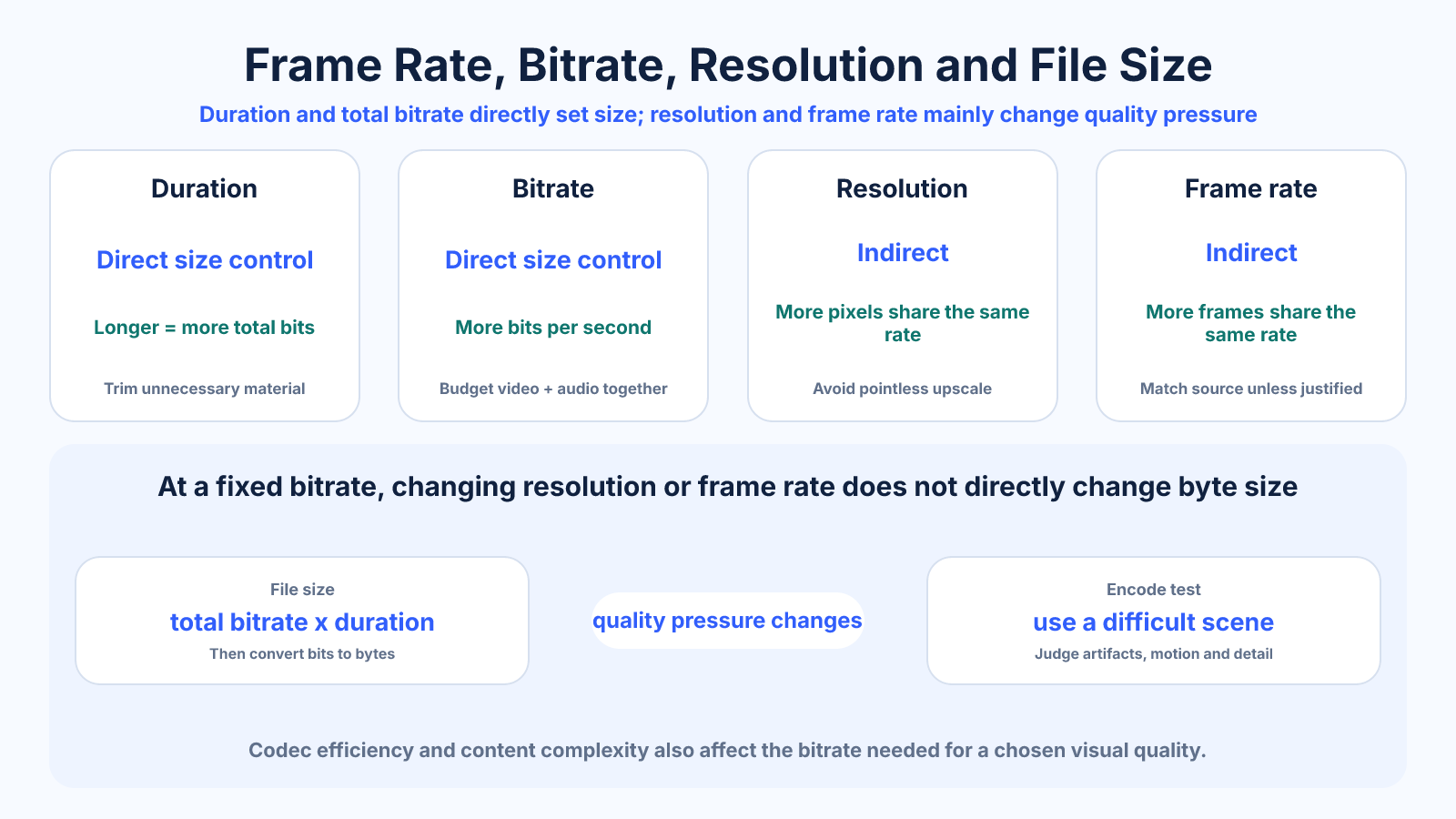
For a bitrate-controlled export, file size is determined mainly by total bitrate multiplied by duration. Resolution and frame rate affect how much bitrate may be needed for a chosen quality, but they do not determine the resulting file size unless the encoder changes bitrate in response.
What matters most
- Duration × total bitrate predicts file size.
- More pixels or frames usually increase bitrate needed for similar quality.
- Codec efficiency and scene complexity change quality at a given bitrate.
How to apply it
- Measure the program duration accurately.
- Add target video bitrate and audio bitrate.
- Calculate total bits, divide by eight and convert to MB or GB.
- Choose resolution and frame rate appropriate to the source and destination.
- Encode a difficult sample and adjust bitrate based on visible results.
Reference table
| Variable | Directly fixes size? | Quality effect at same bitrate | Good practice |
|---|---|---|---|
| Duration | Yes | Longer program shares the same bits per second | Trim unnecessary material |
| Bitrate | Yes | More bits usually preserve more detail | Budget video and audio together |
| Resolution | No | More pixels compete for available bits | Avoid unnecessary upscale |
| Frame rate | No | More frames compete for available bits | Match source unless conversion is justified |
Use exact dimensions and units in production notes; familiar labels can describe more than one standard.
Start with the variable that directly controls size
A 10-minute export at 8 Mb/s video plus 192 kb/s audio has a total nominal bitrate of 8.192 Mb/s. Multiplying by 600 seconds gives 4915.2 megabits; dividing by eight gives about 614.4 decimal megabytes before container overhead. This relationship is independent of whether the frame is 1080p or 4K.
Variable-bitrate encoders may finish above or below an average target, and some quality-based modes do not promise a bitrate at all. When a hard upload limit matters, calculate a conservative target, reserve overhead and verify the actual file rather than trusting the preset name.
- Add video and every audio stream.
- Use exact duration in seconds.
- Reserve margin for overhead and bitrate variation.
Resolution changes bitrate demand, not the basic formula
A larger frame contains more samples to describe. At the same codec, frame rate and content complexity, 4K generally needs more bitrate than 1080p to maintain a similar level of artifacts. But if both are forced to 8 Mb/s for ten minutes, their nominal sizes remain similar and the 4K version may simply look less efficient per pixel.
Do not upscale solely to obtain a higher platform label. Enlarging 1080p to 4K cannot restore source detail, and the larger raster may waste encoding effort. Select resolution based on genuine source detail, delivery requirements and expected viewing conditions.
- Do not equate pixel count with compressed size.
- Avoid unnecessary upscaling.
- Judge detail at intended display size.
Frame rate distributes bits across more pictures
At 60 frames per second, an encoder processes twice as many frames as at 30 fps. Modern codecs reuse information between frames, so the quality cost is not a simple doubling, but fast motion and frequent changes reduce that efficiency. A static presentation behaves differently from sports or gameplay.
Match the source frame rate unless a defined delivery conversion is required. Duplicating 30 fps frames into a 60 fps file adds no new motion samples, while interpolation can create artifacts. Preserve motion cadence before pursuing a nominally higher frame rate.
- Keep native cadence where possible.
- Test high-motion sections.
- Do not confuse duplicated frames with captured 60 fps.
Codec and content determine what a bitrate can achieve
Two files with equal duration, bitrate and dimensions can look different because codecs, encoder settings and content complexity differ. Grain, foliage, confetti and rapid camera movement are harder to compress than clean slides or a locked interview shot.
Encode a representative difficult segment using the real delivery settings. Compare moving edges, gradients, text and dark areas at normal playback speed, then inspect obvious problems frame by frame. Select bitrate from observed quality and size requirements rather than copying a universal number.
Common mistakes to avoid
- Multiplying resolution by duration as if compressed video stored raw pixels.
- Ignoring audio bitrate in a strict upload budget.
- Doubling frame rate without having additional source motion samples.
- Judging compression only on a simple static shot.
Continue with the right tool
Use a calculator to check the numbers against your own source and destination instead of relying on a generic preset.
Related guides
How to Calculate Video File Size from Bitrate and Duration
Estimate video storage from total bitrate and running time, with worked examples and the difference between decimal MB and binary MiB.
Video framing and deliveryHow to Choose a Bitrate for a Target Video File Size
Calculate a safe video bitrate from duration and target file size while reserving space for audio, container overhead and variation.
Video compression and file sizeWhy Videos with the Same Resolution Have Different File Sizes
Explain file-size differences between videos with identical dimensions using duration, bitrate, codec, frame rate, audio and scene complexity.
Frequently asked questions
Does 4K always create a larger file than 1080p?
No. A fixed bitrate and duration can produce similar sizes, although 4K may need more bitrate to retain comparable detail.
Does 60 fps double file size?
Only when bitrate is also doubled or the encoder chooses a higher bitrate. At one fixed bitrate, more frames share the available data.
Why is actual size different from the estimate?
Containers, metadata, bitrate variation and decimal versus binary units introduce differences.
Should audio be included?
Yes. Add all audio stream bitrates and allow overhead when a file-size limit is strict.