
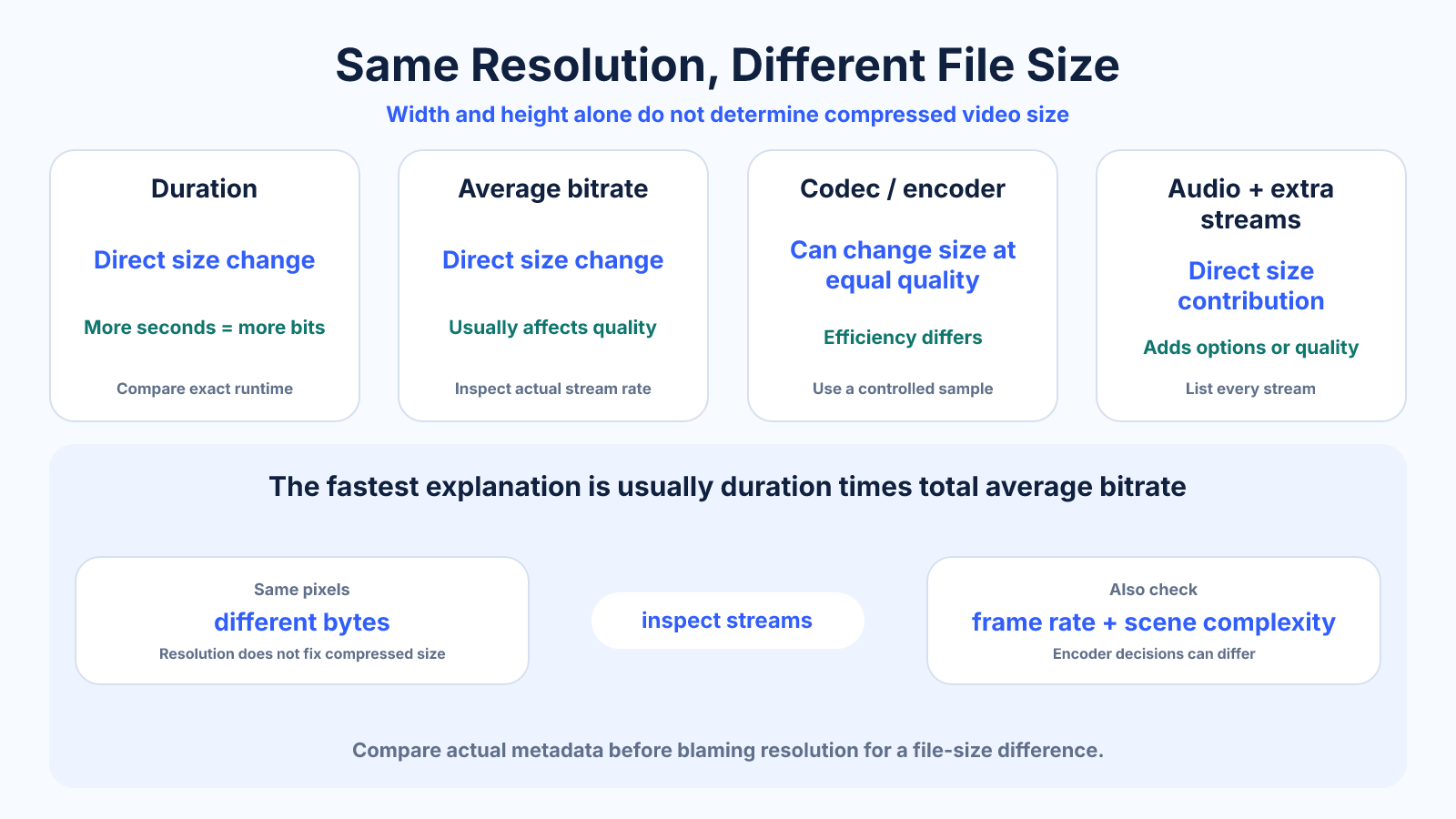
The short version
Resolution does not determine compressed file size. Videos with the same width and height can have different durations, bitrates, codecs, frame rates, audio tracks and content complexity. Duration multiplied by total bitrate is the most useful first explanation.
What matters most
- Equal dimensions mean equal decoded grid size, not equal compressed bytes.
- Audio and extra tracks can materially affect long files.
- Metadata-reported average bitrate helps diagnose an existing output.
How to apply it
- Compare exact durations and actual byte sizes.
- Inspect video and audio codecs, average rates, frame rates and extra streams.
- Calculate size per second or total average bitrate.
- Compare difficult scenes and encoder settings.
- Repeat a controlled encode when you need to isolate one variable.
Reference table
| Difference | Can change size? | Can change quality? | How to verify |
|---|---|---|---|
| Duration | Directly | Not per frame | Compare exact seconds |
| Average bitrate | Directly | Usually | Inspect stream data |
| Codec/encoder | At equal quality | Yes | Controlled sample |
| Frame rate | Through chosen rate | Motion quality | Inspect fps and cadence |
| Audio tracks | Directly | Audio quality/options | List every stream |
Use exact dimensions and units in production notes; familiar labels can describe more than one standard.
Check duration and total average bitrate first
A ten-minute file at 10 Mb/s total is nominally about twice the size of a ten-minute file at 5 Mb/s. A twenty-minute file at 5 Mb/s is also about twice the size of the ten-minute file. Resolution need not change in either comparison.
For an existing file, total average bitrate can be approximated from bytes × eight ÷ duration in seconds. Compare that result with listed stream rates, allowing for container overhead. This quickly separates a duration difference from an encoding-rate difference.
- Use exact seconds.
- Calculate from actual bytes.
- Include all streams in total rate.
Inspect all streams and metadata
One MP4 may contain a single stereo audio track while another contains several languages, surround audio, captions or attachments. Each stream adds data over the entire duration. High-bitrate audio can be a meaningful share of small web-video budgets.
List codecs, profiles, pixel formats, frame rates and stream rates rather than relying on a filename. Rotation metadata can make a stored raster appear in another orientation, and variable frame rate can complicate simplistic comparisons.
- Count audio languages and channels.
- Inspect frame-rate mode.
- Distinguish stored raster from displayed orientation.
Variable bitrate responds to scene complexity
A clean slide remains similar across frames and compresses efficiently. Handheld foliage, grain, confetti and water change continually, requiring more data to control artifacts. In quality-targeted or variable-rate encoding, the complex program can become larger even with the same nominal dimensions and duration.
Encoder presets also trade processing time for compression decisions. A slower, well-tuned encode may reach better quality at a similar size, but comparisons must use the same source and playback conditions. Different content prevents a strict efficiency conclusion.
- Compare like-for-like source segments.
- Include motion and texture in tests.
- Record encoder and preset versions.
Run a controlled comparison
Select one representative source segment and keep duration, crop, frame rate, audio and color settings fixed. Change only codec, bitrate or resolution according to the question. Measure actual bytes and inspect the same timestamps in motion.
Document what changed and what remained constant. A controlled result can guide presets; two unrelated downloaded videos cannot. Preserve the master so future codec comparisons do not inherit damage from an earlier lossy export.
- Change one variable at a time.
- Measure size and quality together.
- Always encode from the same master.
Common mistakes to avoid
- Comparing a two-minute clip with a three-minute clip by resolution alone.
- Looking only at the video stream and ignoring audio.
- Assuming equal bitrate means equal quality across codecs.
- Using filename labels instead of inspecting stream metadata.
Continue with the right tool
Use a calculator to check the numbers against your own source and destination instead of relying on a generic preset.
Related guides
How Frame Rate, Bitrate and Resolution Affect Video File Size
Understand which video settings directly control file size and how frame rate, resolution, codec and content affect bitrate choices.
Video compression and file sizeVideo Codec vs Container: MP4, MOV, H.264, H.265 and AV1
Understand how containers and codecs differ, what common labels actually mean, and how compatibility and compression affect delivery.
Video compression and file sizeHow to Prepare a Video for an Upload File-Size Limit
Meet a strict video upload limit by calculating bitrate, reserving overhead and testing quality without random repeated compression.
Frequently asked questions
Why is one 1080p video twice as large?
It may be longer or use roughly twice the total average bitrate, among other stream differences.
Does frame rate directly determine size?
Not under a fixed bitrate, but encoders often allocate more bitrate to higher frame rates.
Can identical settings still produce different sizes?
Yes. Variable-rate encoding responds to content complexity and may not reach exactly the same average.
How can I compare fairly?
Encode the same source segment with one changed setting and measure both actual size and visible quality.