
The short version
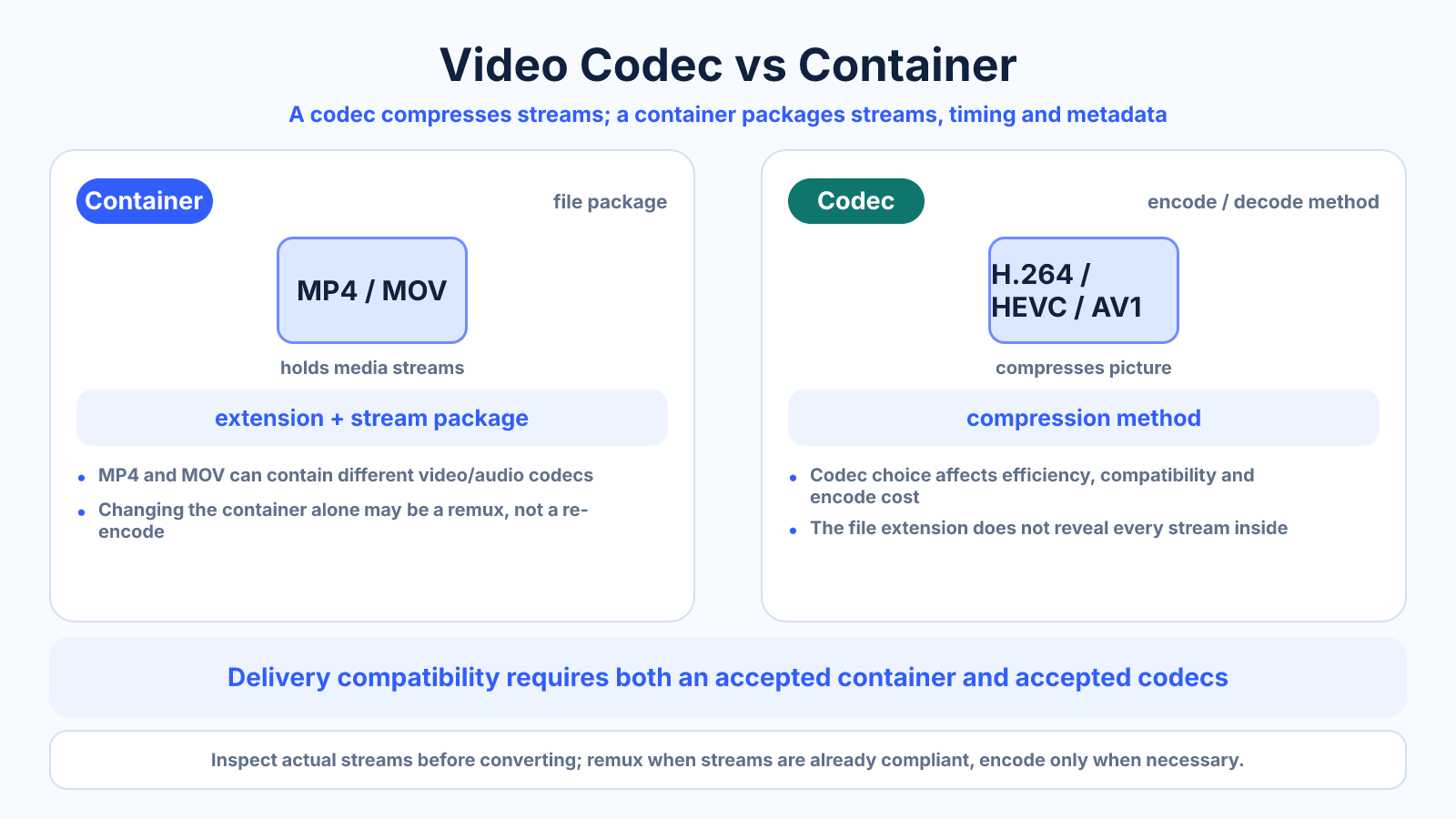
A codec defines how video or audio is encoded and decoded; a container packages streams, timing and metadata into a file. MP4 and MOV are containers, while H.264/AVC, H.265/HEVC and AV1 are video codecs. The extension alone does not reveal every stream inside.
What matters most
- Container and codec are separate compatibility decisions.
- A more efficient codec can reduce bitrate needs but may cost encode time or device support.
- Remuxing changes the container without recompressing compatible streams.
How to apply it
- Inspect the actual video and audio streams inside the source.
- Check the destination's accepted container, codec, profile, level and audio rules.
- Choose the most compatible efficient combination for the audience.
- Remux when streams are already compliant; encode only when necessary.
- Test playback, seeking, captions, color and audio on target devices.
Reference table
| Name | Type | Primary role | Typical consideration |
|---|---|---|---|
| MP4 | Container | Packages media and metadata | Broad web/device support |
| MOV | Container | Packages media for production/delivery | Workflow compatibility varies |
| H.264/AVC | Video codec | Compresses picture | Very broad playback support |
| H.265/HEVC | Video codec | More efficient compression | Licensing and older-device support |
| AV1 | Video codec | Modern efficient compression | Encode cost and device support |
Use exact dimensions and units in production notes; familiar labels can describe more than one standard.
Think of the container as a package
The container stores one or more encoded streams plus timestamps, track labels, chapters and other metadata. The codec is the rule used to turn decoded pictures or sound into a compressed stream and back. A player must understand both the package and the streams it contains.
This is why two files ending in .mp4 can behave differently. One may contain H.264 video and AAC audio that plays almost everywhere; another may use a newer video codec or unusual audio profile unsupported by a target browser or editor.
- Inspect streams instead of trusting extensions.
- Check video and audio codecs independently.
- Treat profiles and levels as part of compatibility.
Distinguish remuxing from re-encoding
Remuxing copies compatible compressed streams into another container. It is fast and does not change picture quality because pixels are not decoded and compressed again. Re-encoding decodes a stream and creates a new one, enabling codec, bitrate, frame-size or frame-rate changes at the cost of processing and possible loss.
Changing a filename extension performs neither operation reliably. Use a media tool that understands the formats, then verify duration, synchronization, seeking and metadata. If the destination accepts the original streams, prefer remuxing over an unnecessary lossy generation.
- Remux for a packaging change.
- Encode for a stream change.
- Never treat extension renaming as conversion.
Balance efficiency with compatibility
Newer codecs can deliver comparable visual quality with fewer bits for many sources, but results depend on encoder implementation, speed and content. They may require more encoding time and hardware support, and an older device or editing application may not decode them smoothly.
Start with the destination specification and audience. Broad public delivery often values predictable playback, while controlled archival or modern streaming workflows may accept a more efficient codec. Test real target devices instead of assuming a supported name guarantees every profile or bit depth.
- Follow destination requirements first.
- Test hardware decoding and seeking.
- Compare quality at equal size, not only equal bitrate.
Validate more than picture playback
A file can display video yet fail in audio, captions, color or seeking. Check every required track, language label, orientation flag and timecode behavior. Confirm that full-range or HDR metadata survives only where intended and is interpreted correctly.
Record the complete delivery combination: container, codec, profile, dimensions, frame rate, bitrate mode and audio format. These details make future troubleshooting precise and prevent the vague instruction “send an MP4” from producing incompatible files.
- Test audio and subtitle tracks.
- Inspect color and orientation metadata.
- Document the complete delivery specification.
Common mistakes to avoid
- Calling every MP4 an H.264 file.
- Renaming .mov to .mp4 instead of remuxing or encoding.
- Selecting the newest codec without checking playback support.
- Re-encoding compatible streams when a lossless remux would work.
Continue with the right tool
Use a calculator to check the numbers against your own source and destination instead of relying on a generic preset.
Related guides
How to Reduce MP4 File Size Without Making It Look Bad
Reduce an MP4 file intelligently by trimming, choosing an efficient codec, controlling bitrate and testing the scenes most likely to break.
Video compression and file sizeVideo Resolution vs Bitrate: Which One Controls Quality?
Learn how resolution and bitrate interact, why neither guarantees quality, and how to choose a balanced export for real content.
Video compression and file sizeWhy Videos with the Same Resolution Have Different File Sizes
Explain file-size differences between videos with identical dimensions using duration, bitrate, codec, frame rate, audio and scene complexity.
Frequently asked questions
Is MP4 a codec?
No. MP4 is a container that can package supported video, audio and metadata streams.
Is H.264 the same as AVC?
They are names for the same video coding standard family.
Can MOV be changed to MP4 without quality loss?
Yes when the existing streams are compatible and can be remuxed without re-encoding.
Is H.265 always better than H.264?
It can be more efficient, but compatibility, licensing, encode time and the actual encoder matter.