
The short version
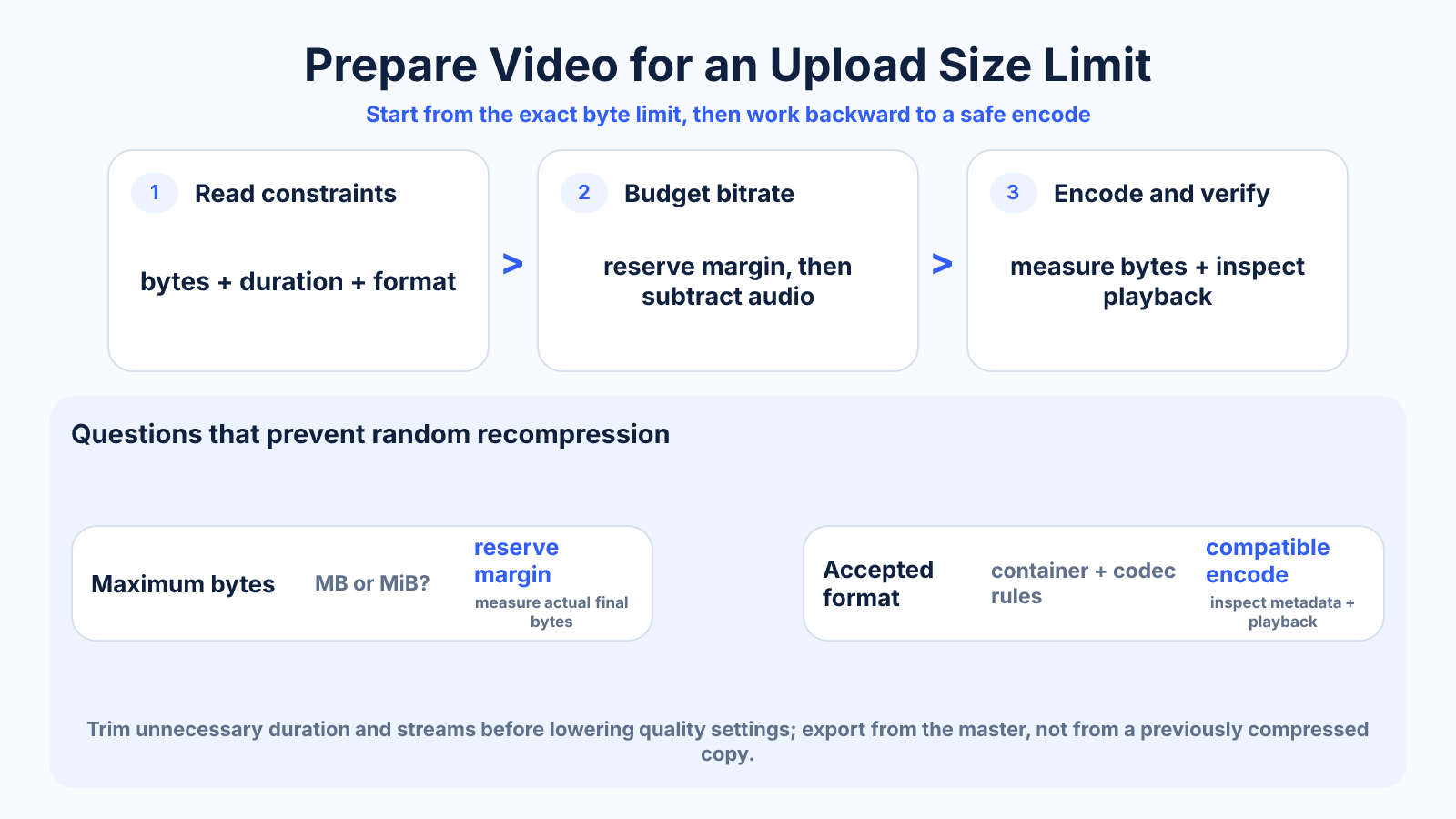
Start with the exact byte limit and duration, calculate the total bitrate budget, subtract audio and safety margin, then select a realistic resolution and codec. Encode from the master and verify both byte size and playback before submission.
What matters most
- A strict limit requires a target-rate workflow, not trial-and-error percentages.
- Compatibility rules matter alongside size.
- The shortest clean route is trim, calculate, encode once and verify.
How to apply it
- Read the destination's size, duration, format, codec and resolution requirements.
- Trim unnecessary duration and remove unused streams.
- Calculate total and video bitrate with a conservative reserve.
- Choose compatible resolution, frame rate, codec and audio settings.
- Encode from the source, inspect hard scenes and test the actual upload.
Reference table
| Constraint | Question to answer | Action | Verification |
|---|---|---|---|
| Maximum bytes | Decimal MB or binary MiB? | Reserve margin | Measure actual bytes |
| Maximum duration | Are extra seconds included? | Trim deliberately | Read exact runtime |
| Accepted format | Which container/codecs? | Use compliant streams | Inspect metadata |
| Quality | What viewing context? | Test hard scene | Watch final file |
Use exact dimensions and units in production notes; familiar labels can describe more than one standard.
Read the complete upload specification
Capture the maximum bytes, duration, dimensions, frame rate, container, video codec, profile, audio format and any naming rules. A file under 100 MB can still fail when it uses unsupported HEVC video, unusual audio or a forbidden duration.
Determine whether the service transcodes the upload or expects final delivery quality. A collaboration portal, application form and social platform can have different goals even when their byte limits look similar. Follow the named destination rather than a generic internet preset.
- Record hard limits separately from recommendations.
- Confirm supported codec profiles.
- Check whether the platform will transcode.
Calculate before opening the encoder
For a 500 MB decimal limit and ten-minute duration, the nominal total budget is 6.667 Mb/s. After 192 kb/s audio and a 4% reserve, a starting video target is roughly 6.2 Mb/s. Use exact numbers in the calculator for the actual program.
If the resulting rate cannot preserve the chosen resolution and content, the constraint is physical rather than a software problem. Shorten the program, lower unnecessary raster size or seek a different delivery route. Repeatedly encoding at arbitrary quality percentages wastes time and compounds loss.
- Calculate total rate from bytes and seconds.
- Subtract audio and reserve.
- Resolve impossible quality constraints explicitly.
Encode once from the best source
Return to the project master or highest-quality available file. Remove unused heads, tails and streams, then apply the selected delivery settings. Do not use the previous failed low-bitrate output as the input for another attempt.
For a target average rate, a suitable multi-pass or constrained mode may distribute data better than a crude constant rate. The correct choice depends on encoder and destination; always check peak constraints and hardware compatibility where specified.
- Never chain lossy attempts.
- Keep audio within its allocated budget.
- Use the destination-compatible rate mode.
Verify the file and the real submission path
Measure bytes, duration and every stream after encoding. Watch the beginning, end, hard motion, text and audio synchronization. Then test the same browser or upload application the recipient will use, because client-side validation may reject a technically playable file.
Keep the accepted output and its settings together. Record any difference between published documentation and actual validation, but do not assume one test remains permanent. Important submissions deserve a fresh check before the deadline.
- Inspect metadata after encoding.
- Use the real uploader before a deadline.
- Archive successful settings with the file.
Common mistakes to avoid
- Compressing repeatedly without calculating a target bitrate.
- Meeting size but using an unsupported codec or profile.
- Forgetting alternate audio tracks.
- Submitting a file exactly at the published limit with no tolerance.
Continue with the right tool
Use a calculator to check the numbers against your own source and destination instead of relying on a generic preset.
Related guides
How to Choose a Bitrate for a Target Video File Size
Calculate a safe video bitrate from duration and target file size while reserving space for audio, container overhead and variation.
Video compression and file sizeHow to Reduce MP4 File Size Without Making It Look Bad
Reduce an MP4 file intelligently by trimming, choosing an efficient codec, controlling bitrate and testing the scenes most likely to break.
Video compression and file sizeConstant vs Variable Bitrate: File Size and Quality Explained
Compare CBR and VBR for streaming, recording and file delivery, including size prediction, quality allocation and peak-rate constraints.
Frequently asked questions
How do I calculate bitrate for an upload limit?
Convert target bytes to bits, divide by exact seconds, reserve margin and subtract audio bitrate.
Should I use two-pass encoding?
It can distribute a target average bitrate more intelligently, but support and results depend on the encoder.
What if the calculated bitrate looks too low?
Trim duration, reduce unnecessary resolution or negotiate a larger limit rather than hiding severe artifacts.
Why can a compliant file still fail?
The portal may enforce codec, profile, frame rate, duration, naming or browser-specific constraints in addition to size.