
The short version
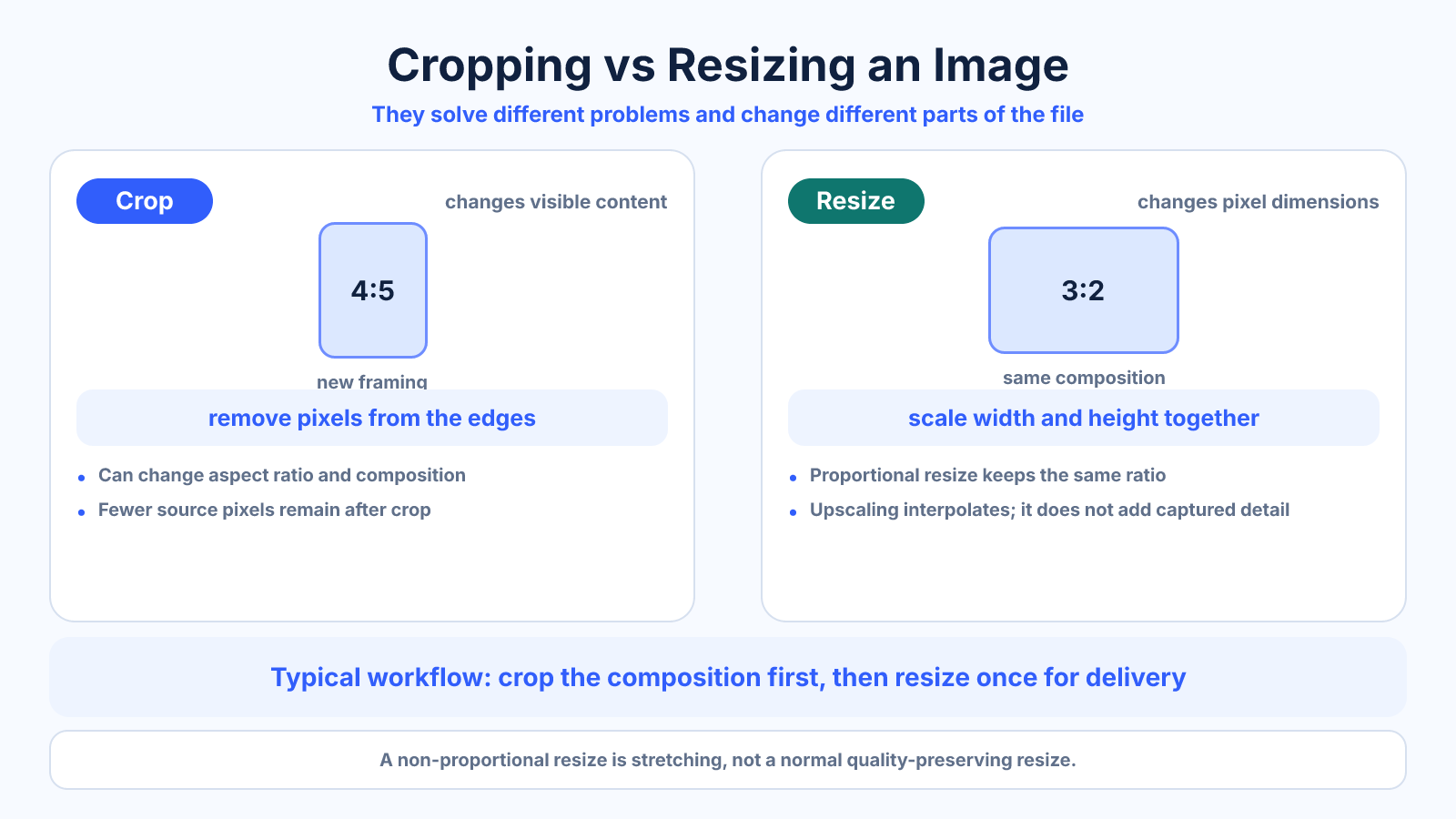
Cropping removes part of an image and can change its aspect ratio; resizing changes pixel dimensions and may preserve the same composition. A proportional resize does not change shape, while a non-proportional resize stretches the subject. Many workflows require crop first, then one final resize.
What matters most
- Crop changes which content remains in frame.
- Proportional resize changes scale, not shape.
- Crop before final resize to avoid processing pixels you will discard.
How to apply it
- Record the original dimensions and ratio.
- Choose the destination ratio and mark protected content.
- Preview the crop before removing pixels.
- Resize the accepted crop proportionally to delivery dimensions.
- Inspect the final file at intended display size and retain the master.
Reference table
| Operation | Removes content | Changes ratio | Quality consideration |
|---|---|---|---|
| Crop | Yes | Can | Fewer source pixels remain |
| Proportional resize | No | No | Downscale discards detail; upscale interpolates |
| Canvas expansion | No | Yes | Adds background around source |
| Stretch | No | Yes | Distorts object geometry |
Use exact dimensions and units in production notes; familiar labels can describe more than one standard.
See the geometry each operation changes
A 6000 × 4000 photograph is 3:2. Cropping it to 5000 × 4000 creates a 5:4 composition and removes one sixth of its width. Resizing the original proportionally to 3000 × 2000 keeps every part of the frame and remains exactly 3:2.
Forcing that original into 3000 × 2400 without cropping changes horizontal and vertical scale differently. Circles become ovals and people widen. The output dimensions look correct, but the visual geometry is false; crop or padding should have resolved the ratio mismatch first.
- Compare ratio before and after.
- Separate removed area from changed scale.
- Use a grid or circle to reveal distortion.
Separate composition loss from detail loss
Crop loss is compositional: information outside the selected rectangle disappears. Resize loss is spatial: downscaling combines source samples, while upscaling estimates new ones. A crop may look perfectly sharp until it must be enlarged for a large output.
Calculate the remaining pixel dimensions after crop, then compare them with the delivery requirement. This order prevents a misleading decision based only on original megapixels. Preserve an editable crop so the composition can be adjusted without repeating destructive processing.
- Measure pixels after crop.
- Avoid repeated resampling.
- Retain the uncropped master.
Choose the operation from the actual constraint
Use crop when the destination must be full-bleed and edge content is expendable. Use proportional resize when the source already has the correct shape. Use fit plus canvas when every source pixel matters, as with diagrams, logos and complete artwork.
A social post may need crop and resize; an email attachment may need only resize; a print may need crop, resize and bleed. Name each step explicitly so software presets do not hide what is being removed or interpolated.
- Full bleed usually requires a matching crop.
- Complete information favors fit.
- Correct-shape sources need only proportional scale.
Verify the exported image
Check pixel dimensions, ratio, orientation and file format after export. View at 100% to reveal resampling or compression artifacts, then view at intended size to judge practical sharpness. Ensure text, faces and required marks survived the crop.
Keep the original and record the intended destination in the filename or project. A future platform or print size may need a wider crop, and pixels removed from the only saved copy cannot be restored reliably.
Common mistakes to avoid
- Calling a crop a resize and overlooking lost content.
- Unlocking width and height and stretching faces.
- Upscaling after an unnecessarily tight crop.
- Overwriting the only high-resolution original.
Continue with the right tool
Use a calculator to check the numbers against your own source and destination instead of relying on a generic preset.
Related guides
How to Resize an Image Without Losing Quality
Resize images cleanly by preserving aspect ratio, choosing an appropriate resampling method and avoiding unnecessary recompression.
Image cropping and print preparationHow to Crop an Image to an Aspect Ratio Without Stretching
Calculate and position an exact aspect-ratio crop while preserving natural proportions, important content and enough pixels for output.
Image cropping and print preparationHow Much of an Image Will Be Lost When Cropping?
Calculate crop dimensions, removed pixels and percentage area when fitting one image aspect ratio into another without distortion.
Frequently asked questions
Does cropping reduce quality?
It does not alter retained pixels, but fewer pixels remain and enlargement may become necessary.
Can resizing change aspect ratio?
Only if width and height change by different proportions, which stretches the image.
Which should happen first?
Set composition with crop first, then resize once for delivery.
Can I change ratio without cropping?
Yes, by adding canvas or fitting the complete image inside a differently shaped frame.