
The short version
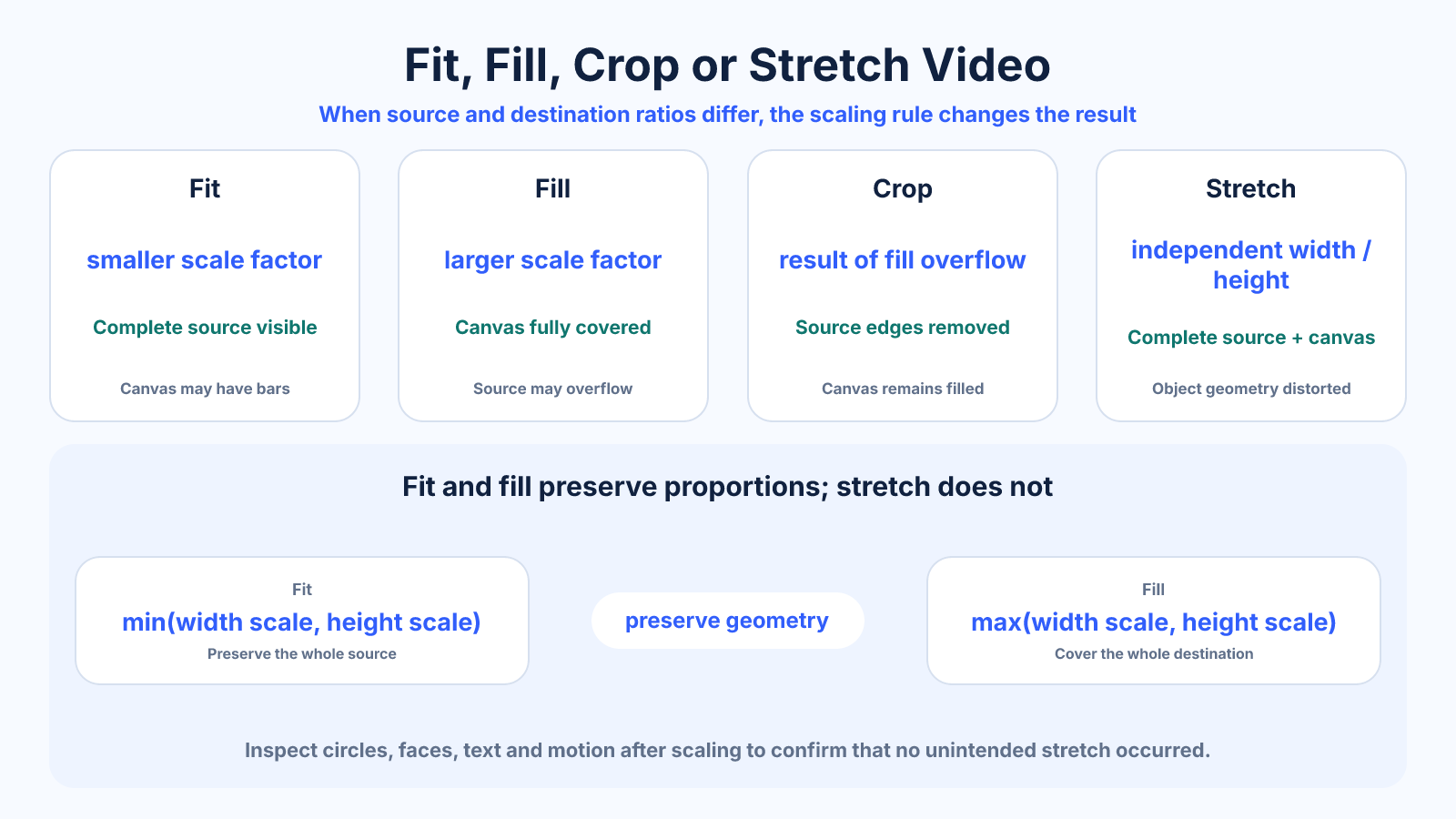
Fit scales a source until all of it is visible; fill scales until the destination is covered; crop describes the source portion removed by fill; stretch forces both dimensions independently and changes object proportions. Use fit or fill deliberately and avoid stretch for ordinary footage.
Use this guide when
Use this reference to identify and compare fit, fill, crop and stretch before choosing a framing behavior.
Choose a different guide when:
- To make the final crop-versus-bars decision, read Crop vs Letterbox: Which Video Framing Method Should You Use?.
- To build a non-distorting conversion workflow, read How to Convert Video Aspect Ratio Without Stretching.
What matters most
- Fit and fill both preserve source proportions.
- Fill implies crop whenever source and destination ratios differ.
- Stretch may occupy the canvas but changes geometry.
How to apply it
- Record source and destination dimensions.
- Calculate width and height scale factors.
- Use the smaller factor for fit and the larger factor for fill.
- Measure remaining bars or overhanging crop.
- Inspect circles, faces, text and motion to verify that no stretch occurred.
Reference table
| Mode | Scale factor | Complete source? | Complete canvas? |
|---|---|---|---|
| Fit | Smaller of width/height factors | Yes | Only if ratios match |
| Fill | Larger factor | Only if ratios match | Yes |
| Crop | Result of fill overflow | No | Yes |
| Stretch | Independent width and height factors | Yes | Yes, but distorted |
Use exact dimensions and units in production notes; familiar labels can describe more than one standard.
Calculate fit and fill from scale factors
For a 1920 × 1080 source in a 1080 × 1080 canvas, the width factor is 1080 ÷ 1920 = 0.5625 and the height factor is 1080 ÷ 1080 = 1. Fit uses 0.5625, producing 1080 × 608 after whole-pixel rounding. Fill uses 1, producing 1920 × 1080 before side cropping.
This method works for any pair of rectangles. Use the smaller factor when neither scaled dimension may exceed the destination; use the larger factor when neither scaled dimension may fall short. Calculate with full precision, then round only the final raster dimensions.
- Fit uses the smaller scale factor.
- Fill uses the larger scale factor.
- Round at the final pixel stage.
Verify what an editor label actually means
Applications may label similar behavior as contain, cover, fit, fill, scale to frame or set to frame. Some commands change a clip's scale property, while others resample pixels or alter sequence settings. Test with a circle or grid so distortion and cropping are immediately visible.
Do not assume a preset chooses the creative crop position. Even when an editor detects a face, it may follow the wrong subject or move too often. Geometry can select the scale; editorial judgment must still select what remains visible.
- Use a grid to reveal stretching.
- Inspect clip scale and sequence dimensions separately.
- Review automatic reframing over time.
Understand the quality consequences
A fill crop can retain plenty of output pixels when the source is larger than the destination, but it removes contextual image area. Fit retains context yet may display the source at a smaller active size. Stretch retains all pixels only nominally because their spatial relationship changes.
Repeated exports add another variable: compression. Make framing decisions from the highest-quality master, avoid intermediate lossy files, and judge the final encode at intended display size. A mathematically exact frame can still look poor when the source is noisy or overcompressed.
- Separate composition loss from detail loss.
- Work from the best available master.
- Avoid repeated lossy conversions.
Choose a mode using protected content
Mark the source area that must survive: faces, diagrams, subtitles, products and legal copy. If the protected rectangle fits inside the destination's fill window, crop is viable. If it does not, fit or redesign is required unless elements can be repositioned independently.
Document the decision in templates and production notes. Teams often create avoidable inconsistencies when one editor interprets “fit” as show everything while another interprets it as fill the screen. Include expected active dimensions, padding or crop position.
Common mistakes to avoid
- Using software labels without checking their actual behavior.
- Confusing crop-to-fill with non-proportional stretch.
- Reporting outer canvas dimensions as active picture dimensions.
- Ignoring rounding when final sizes must use whole pixels.
Continue with the right tool
Use a calculator to check the numbers against your own source and destination instead of relying on a generic preset.
Related guides
How to Reframe 16:9 Video for TikTok, Reels and Shorts
Build effective 9:16 versions of a 16:9 edit for TikTok, Instagram Reels and YouTube Shorts without blind center crops.
Video framing and deliveryCrop vs Letterbox: Which Video Framing Method Should You Use?
Compare cropping and letterboxing with exact geometry, composition tradeoffs and a practical decision process for video delivery.
Video framing and deliveryHow to Convert Video Aspect Ratio Without Stretching
Convert a video to a new aspect ratio using crop, padding or reframing while preserving natural proportions and export quality.
Frequently asked questions
Is fill the same as crop?
Fill is the scaling rule; crop is the removal of the resulting overflow when ratios differ.
Does fit reduce quality?
Downscaling can discard detail, while upscaling interpolates pixels. Fit itself preserves proportions.
When is stretch acceptable?
Only when distortion is intentional or the source metadata incorrectly describes pixel shape and a known correction is required.
Why is my calculated size off by one pixel?
Exact ratios can produce fractional dimensions, so raster outputs require a documented rounding choice.