
The short version
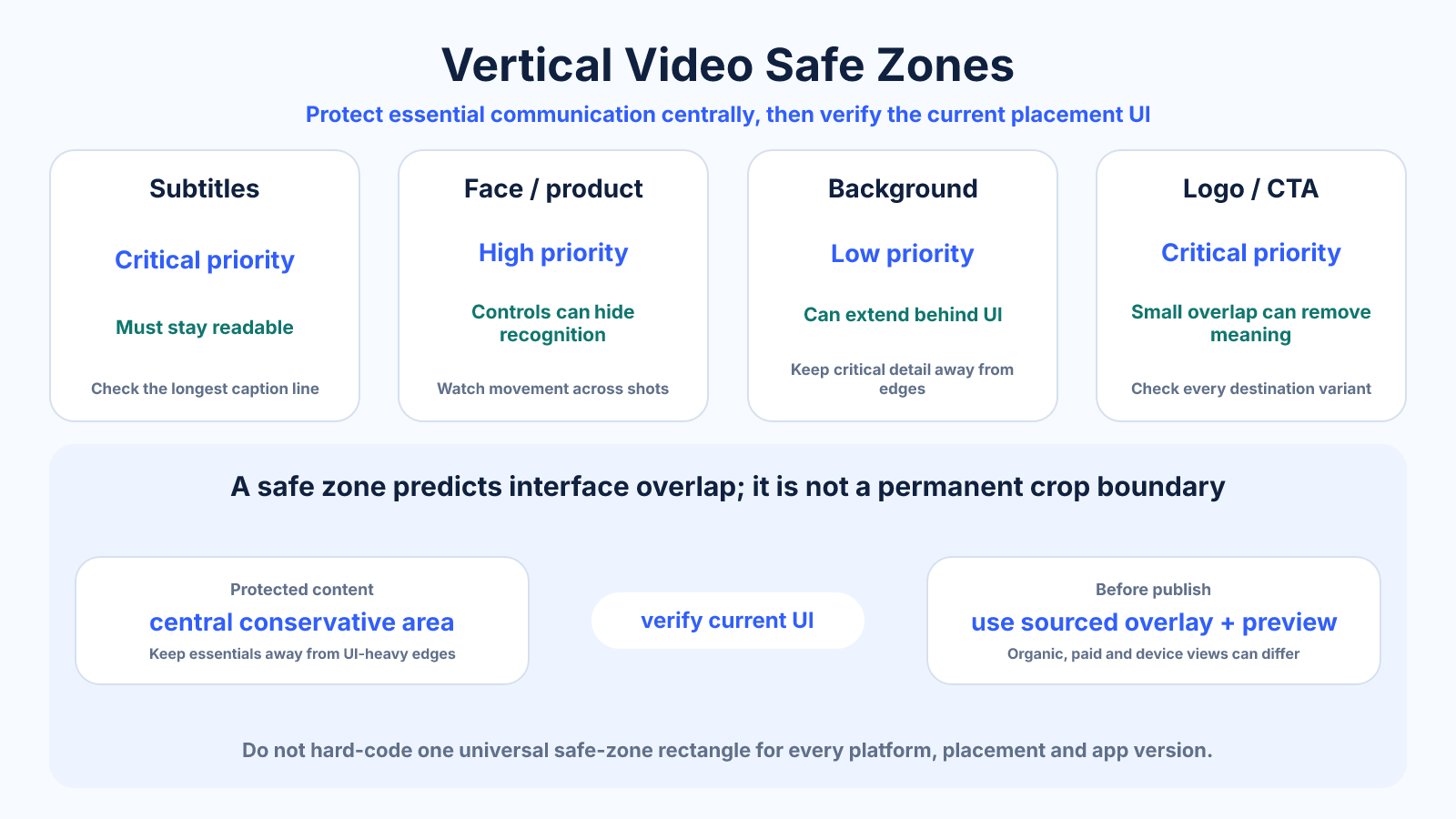
Keep essential text, faces, logos and calls to action in a conservative central area, but use the correct template for the exact placement. A safe zone predicts interface overlap; it is not a crop boundary or permanent guarantee across every device and app version.
What matters most
- Backgrounds may extend outside the safe area.
- Caption length and added formats can change usable space.
- Official ad templates may not exactly describe organic interfaces.
How to apply it
- Confirm the platform, placement and whether the creative is organic or paid.
- Use a current sourced overlay on the exact export canvas.
- Place only essential communication inside the protected area.
- Check moving subjects and captions across the full timeline.
- Hide the overlay, export and verify in the current publishing preview.
Reference table
| Element | Safe-zone priority | Why | Check |
|---|---|---|---|
| Subtitles | Critical | Must remain readable throughout | Longest line and final caption |
| Face/product | High | Controls can cover recognition | Movement across shots |
| Background | Low | Can continue behind interface | No critical edge detail |
| Logo/CTA | Critical | Small obstruction can remove meaning | Every destination variant |
Use exact dimensions and units in production notes; familiar labels can describe more than one standard.
A safe zone is not a crop boundary
The complete 1080 × 1920 background may remain visible while buttons, captions and navigation sit over parts of it. Safe zones identify where important communication is less likely to be obstructed. They do not state that everything outside the line is removed.
This distinction changes design decisions. Extending color, imagery and motion to the edges creates a full-screen experience, while keeping a face or legal line inside the protected area maintains meaning. Do not shrink the entire creative into a small box and leave accidental empty borders.
- Extend backgrounds to the canvas edge.
- Protect only content that must be seen.
- Use crop calculations separately from overlay calculations.
Account for captions and moving elements
A still overlay cannot verify an entire video. Subtitles change length, speakers move and product labels enter or leave the frame. Scrub the timeline with the overlay visible and inspect the longest caption, lowest title and widest subject movement.
When captions are generated by the platform, their position and wrapping may depend on language, accessibility settings and device width. Leave more room than the minimum template when a campaign must support translation or when the exact rendered copy is not known at edit time.
- Test longest and translated copy.
- Review moving subjects across time.
- Leave tolerance beyond a minimum line.
Record the source and review date
A safe-zone number without a placement, source and date is easy to misuse. Store those details with templates and explain whether the guide comes from an advertising specification, an organic publishing preview or an intentionally conservative house rule.
Recheck templates before paid campaigns and important launches. Do not change an article date merely to appear fresh; update it when the sourced guidance or tested interface has meaningfully changed, and describe practical dimensions honestly when no stable official raster exists.
- Name the exact placement.
- Distinguish official guidance from practical recommendations.
- Review before high-value delivery.
Use overlays without exporting them
Place the overlay above video and graphics, align its full canvas with the sequence and lock the layer. Compose underneath it, then hide or remove the layer before export. Use a clearly colored guide so it cannot be mistaken for finished artwork.
Check the rendered file rather than assuming the editor layer state was correct. A brief full-screen review catches accidentally exported guides, clipped subtitles and last-frame calls to action. Retain the editable project and overlay source for future revisions.
Common mistakes to avoid
- Treating an overlay as pixels that will be cropped.
- Using an advertising template as a guarantee for organic posts.
- Leaving the guide visible in the exported file.
- Checking only one still frame when captions or subjects move.
Continue with the right tool
Use a calculator to check the numbers against your own source and destination instead of relying on a generic preset.
Related guides
How Frame Rate, Bitrate and Resolution Affect Video File Size
Understand which video settings directly control file size and how frame rate, resolution, codec and content affect bitrate choices.
Video framing and deliveryHow to Turn a Horizontal Video into Vertical Video
Reframe landscape footage for a vertical 9:16 canvas using crop, split layouts, backgrounds and shot-by-shot composition.
Video framing and deliveryHow to Convert Video Aspect Ratio Without Stretching
Convert a video to a new aspect ratio using crop, padding or reframing while preserving natural proportions and export quality.
Frequently asked questions
What is a vertical video safe zone?
It is a planning area intended to keep essential elements away from likely interface overlays.
Is there one universal safe zone?
No. A conservative shared zone is possible, but controls and captions differ by platform and placement.
Should the whole image stay inside it?
No. Backgrounds and nonessential visual detail can extend to the canvas edges.
Can safe zones change?
Yes. Apps test layouts and render different controls, captions and previews over time.
Sources and further reading
These references support the technical definitions and platform-specific guidance used above.
- TikTok Ads Manager — Auction In-Feed AdsOfficial explanation that safe zones depend on dimensions, captions and added formats.
- Google Ads Help — video ad specsOfficial safe-zone templates for vertical video ads.