
The short version
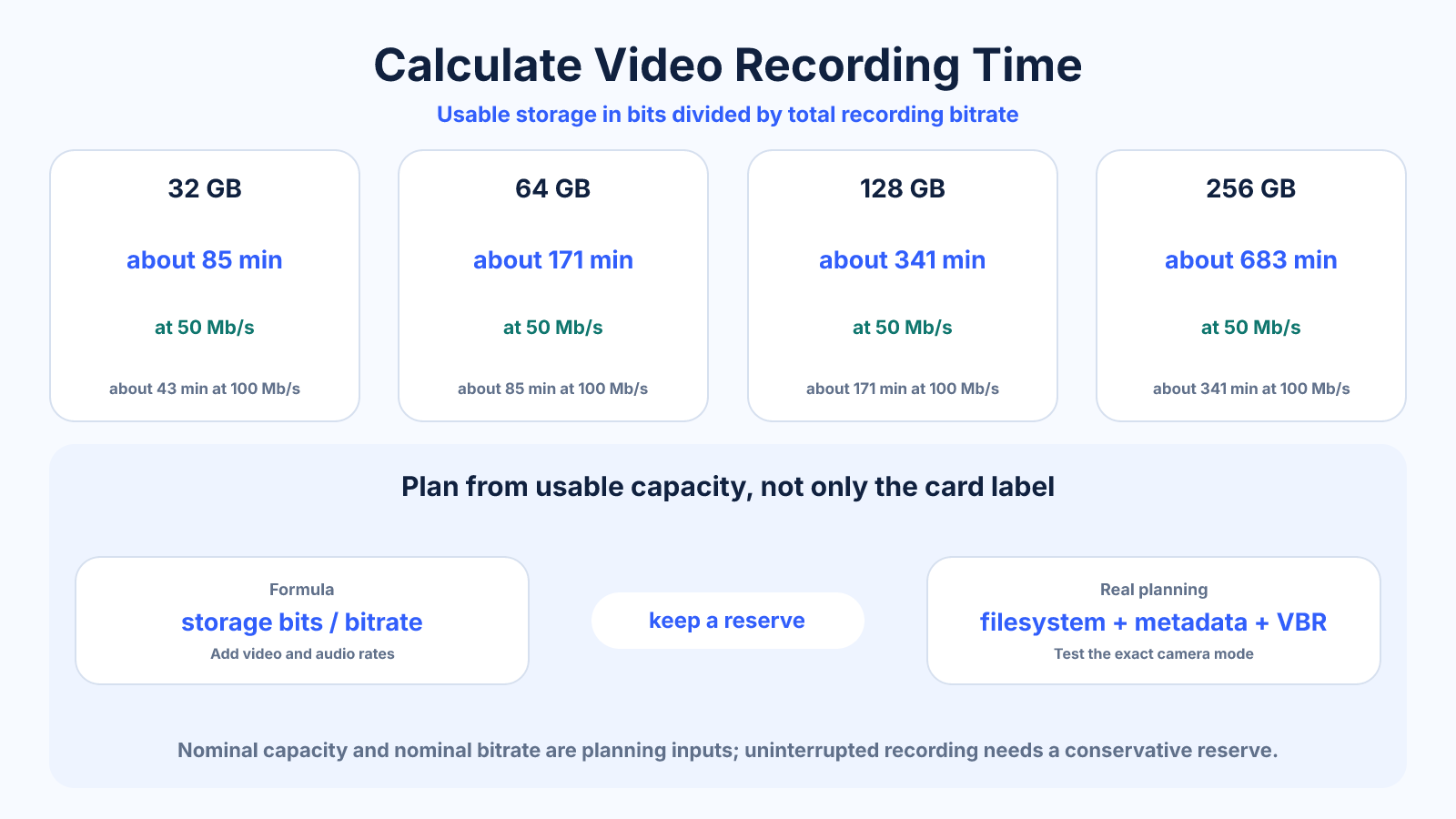
Estimated recording time equals usable storage in bits divided by the total recording bitrate. A nominal 64 GB card at 100 Mb/s holds about 85 minutes before filesystem, metadata and variable-rate allowances, so real planning should use a conservative usable capacity.
Use this guide when
Use this guide to estimate how long a camera or recorder can run before a known storage capacity is filled.
Choose a different guide when:
- To compare common sharing limits, read How Much Video Fits in 25MB, 100MB, 500MB or 1GB?.
- To estimate the size of a known-duration recording, read How to Calculate Video File Size from Bitrate and Duration.
What matters most
- Camera bitrate and card capacity must use compatible units.
- Nominal card capacity is not identical to free usable space.
- Variable bitrate and thermal, battery or file-span limits may stop recording first.
How to apply it
- Check actual free storage rather than only the card label.
- Find the selected recording mode's video and audio data rates.
- Convert capacity to bits and divide by total bits per second.
- Apply a reserve for filesystem, metadata and variable bitrate.
- Test the exact camera mode before an important uninterrupted recording.
Reference table
| Usable capacity | 50 Mb/s | 100 Mb/s | 200 Mb/s |
|---|---|---|---|
| 32 GB | ~85 min | ~43 min | ~21 min |
| 64 GB | ~171 min | ~85 min | ~43 min |
| 128 GB | ~341 min | ~171 min | ~85 min |
| 256 GB | ~683 min | ~341 min | ~171 min |
Use exact dimensions and units in production notes; familiar labels can describe more than one standard.
Put capacity and bitrate into compatible units
A 64 GB decimal capacity contains 512 gigabits. At 100 megabits per second, dividing 512,000 megabits by 100 gives 5,120 seconds, or about 85 minutes 20 seconds. The arithmetic is simple once bytes and bits are not mixed.
Use actual free capacity when files already occupy the card. Operating systems and cameras may display binary and decimal units differently, so a safe field estimate should remain below the nominal mathematical maximum.
- Multiply bytes by eight.
- Use actual free space.
- Convert seconds to hours only at the end.
Read the complete recording-mode specification
A label such as 4K does not identify bitrate. The selected codec, frame rate, bit depth, chroma sampling and compression mode can change data rate substantially. Read the camera's recording table or inspect a representative file from the exact mode.
Include audio and metadata where the published rate excludes them. Intraframe codecs often require more data than long-GOP modes but may edit more smoothly. Choose according to the production and post-production workflow, not only maximum minutes per card.
- Match the exact camera mode.
- Distinguish video-only from total rate.
- Consider editing requirements as well as capacity.
Plan for limits other than storage
Battery runtime, heat, media write speed and per-clip restrictions can end a recording first. A card may have enough capacity but fail to sustain a high data rate, or a camera may stop to span files. Test continuous operation using the real media and environmental conditions.
For events, plan change points and redundant recording rather than aiming to consume every byte. Leave room for filesystem health and unexpected retakes, label media clearly and verify that recorded clips close correctly before formatting another card.
- Check sustained write performance.
- Test heat and battery behavior.
- Leave operational reserve.
Turn the estimate into a field plan
List expected program duration, setup footage, rehearsals and a safety allowance. Compare that total with conservative per-card capacity, then decide when media can be changed without losing action. Continuous interviews need a different plan from short scripted takes.
After a test, compare actual file bytes and duration to the estimate. Update the recorded rate for that mode and camera. A measured workflow is more reliable than a generic minutes-per-GB chart because variable content and firmware behavior differ.
- Budget rehearsals and retakes.
- Schedule safe media changes.
- Calibrate estimates with measured files.
Common mistakes to avoid
- Reading 100 Mb/s as 100 MB/s.
- Using advertised capacity despite existing files and filesystem use.
- Ignoring a camera's per-clip, heat or battery limit.
- Assuming a variable-rate mode consumes one exact bitrate in every scene.
Continue with the right tool
Use a calculator to check the numbers against your own source and destination instead of relying on a generic preset.
Related guides
How Much Video Fits in 25MB, 100MB, 500MB or 1GB?
Estimate video duration from a storage or upload limit and total bitrate, with practical examples and safety margins.
Video framing and deliveryHow Frame Rate, Bitrate and Resolution Affect Video File Size
Understand which video settings directly control file size and how frame rate, resolution, codec and content affect bitrate choices.
Video compression and file sizeVideo Codec vs Container: MP4, MOV, H.264, H.265 and AV1
Understand how containers and codecs differ, what common labels actually mean, and how compatibility and compression affect delivery.
Frequently asked questions
How long can 64GB record at 100 Mb/s?
The nominal calculation is about 85 minutes before reserves and other limits.
Why does the camera show less time?
Existing files, filesystem overhead, audio, metadata and conservative camera estimates reduce displayed time.
Does 4K always use the same bitrate?
No. Recording modes vary by codec, frame rate, bit depth, chroma sampling and manufacturer settings.
Can battery life be the real limit?
Yes. Heat, battery, filesystem segmentation and camera restrictions can stop recording before storage fills.