
The short version
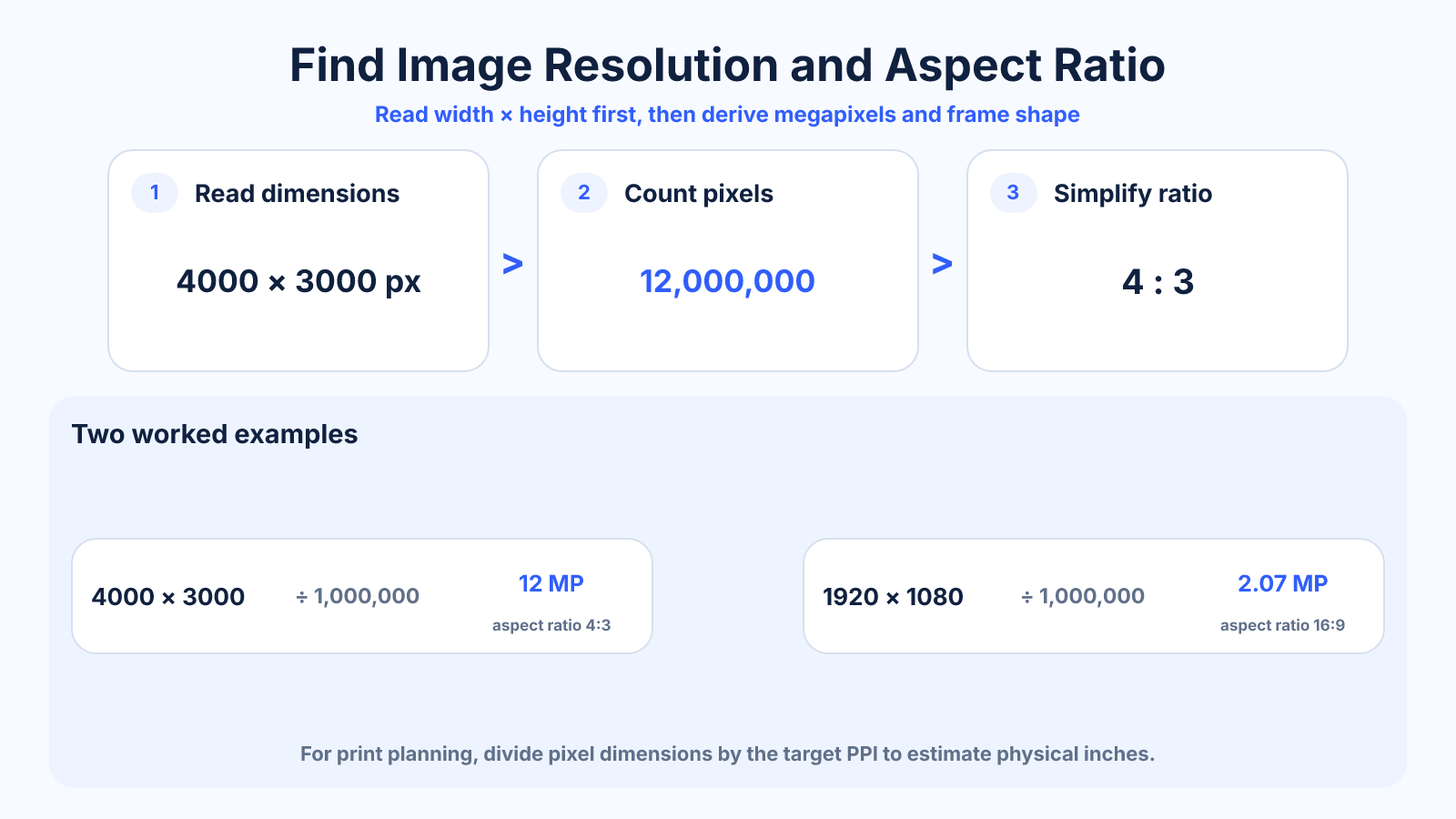
Look for pixel dimensions in the file's properties or open the image in a checker. Width × height gives total pixels, while simplifying width:height gives aspect ratio.
What matters most
- Use pixel dimensions, not the on-screen zoom level.
- A file can have the right ratio but insufficient pixels.
- For print, divide pixels by intended PPI to estimate inches.
How to apply it
- Open the original file rather than a messaging-app preview.
- Read width and height from properties or an image checker.
- Calculate megapixels and simplified ratio.
- Compare against the final screen dimensions or desired print size.
Reference table
| Value | How to calculate | What it tells you |
|---|---|---|
| Dimensions | Read width × height | Exact pixel grid |
| Megapixels | width × height ÷ 1,000,000 | Total pixel count |
| Aspect ratio | simplify width:height | Frame shape |
| Print inches | pixels ÷ PPI | Potential physical size |
Use exact dimensions and units in production notes; familiar labels can describe more than one standard.
Start with the original image file
A thumbnail, screenshot or messaging-app preview may be much smaller than the original. Download or locate the source file before checking resolution. File names and megabytes are not reliable indicators because compression and image complexity change stored size.
Resolution is normally reported as width x height in pixels. Record both numbers. Multiplying them gives total pixels, and dividing by one million gives approximate megapixels. Simplifying width:height gives the image's exact aspect ratio.
Check image resolution on Windows and macOS
On Windows, open the file's Properties and inspect the Details section for dimensions. On macOS, select the file in Finder and open Get Info; image dimensions may appear under More Info. Preview and photo-management applications can also display pixel size.
System interfaces change over time, so look specifically for pixel dimensions rather than a generic size label. If metadata is missing or unclear, open the image in a local browser checker that reads the decoded width and height without uploading the file.
Check resolution on a phone or in a browser
Phone gallery applications often show dimensions in an information or details panel, but cloud previews and shared copies may be reduced. Confirm that you are examining the original item. A browser-based checker can read a selected local image while keeping processing on the device.
Do not confuse the displayed size on a webpage with the source file's dimensions. CSS can render a large source into a small box or enlarge a small file. Inspect the actual image resource or use the original download when determining available pixels.
Decide whether the resolution is sufficient
For screen use, compare the file's pixels with the largest rendered size and consider high-density displays. For print, divide pixels by intended inches to find effective PPI. A 3000-pixel-wide image printed 10 inches wide provides 300 PPI.
Enough resolution does not guarantee a sharp result. Inspect focus, motion blur, compression blocks and noise at the final size. Conversely, do not reject a clean image solely because its metadata says 72 DPI; the actual pixel dimensions and intended print size determine effective density.
Worked image-resolution example
A 4032 x 3024 image contains 12,192,768 pixels, or about 12.2 megapixels. Its dimensions simplify to 4:3. Printed at 300 PPI, it can produce approximately 13.44 x 10.08 inches before cropping.
An 8 x 10 print uses a 4:5 ratio, so this 4:3 source needs a crop or border even though it has sufficient pixels. This example shows why resolution, aspect ratio and physical print size must be checked together.
Common mistakes to avoid
- Checking a thumbnail instead of the source file.
- Reading only file size in MB.
- Assuming 72 DPI metadata limits screen quality.
Continue with the right tool
Use a calculator to check the numbers against your own source and destination instead of relying on a generic preset.
Related guides
How to Resize an Image Without Losing Quality
Resize images cleanly by preserving aspect ratio, choosing an appropriate resampling method and avoiding unnecessary recompression.
Images and photosWhat Is Image Resolution? Pixels, Dimensions and Detail Explained
Understand image resolution, pixel dimensions, megapixels and print density without confusing them with aspect ratio or file size.
Images and photosHow to Resize an Image Without Pixelation
Prevent blocky edges and soft detail by understanding source pixels, enlargement limits, resampling and final viewing size.
Frequently asked questions
Can a browser check an image locally?
Yes. AspectRatioZ reads the selected file in your browser; the image does not need to be uploaded.
Where is resolution shown on Windows or macOS?
Both systems show pixel dimensions in file information or properties panels.
What resolution is enough?
Enough means at least the final displayed pixel size, or the desired print inches multiplied by target PPI.